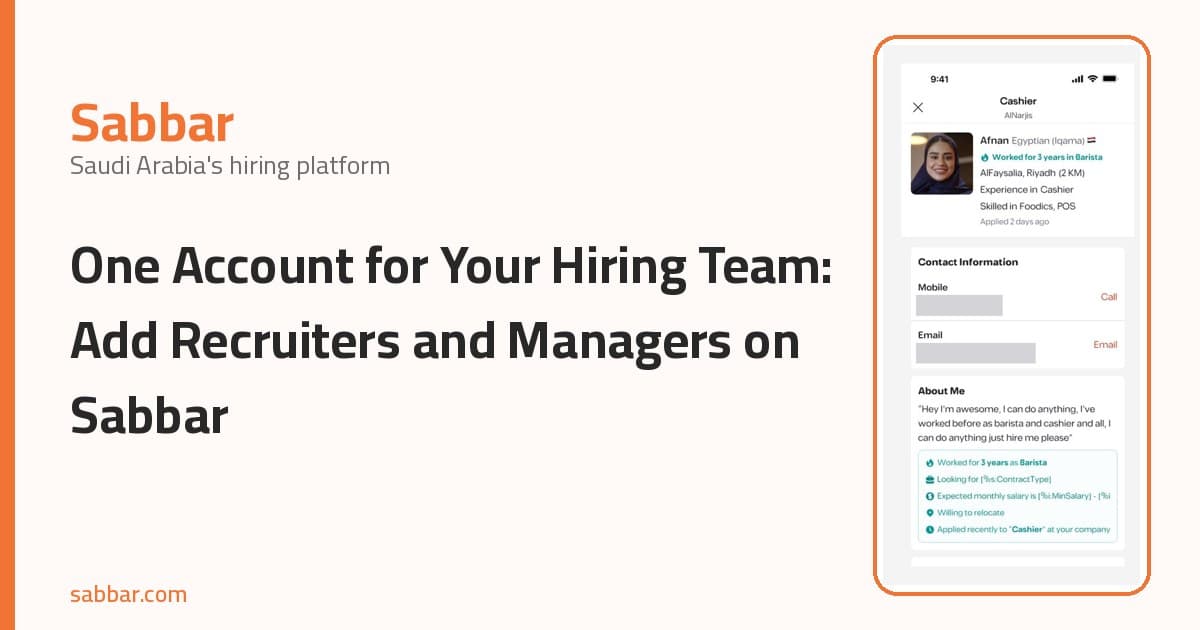
The company account is on the general manager's phone, the login sits with the HR officer, and the branch manager asks her every day for a screenshot of the applicants list. That is how a hiring team works at many businesses: one account passed around.
On Sabbar each colleague has their own sign-in to the same company account, with a role that fits their job. This article explains how to add users, how the roles differ, and how the team works together without stepping on each other.
What you will learn
- Why a hiring team needs a shared account with roles.
- The roles available on Sabbar.
- How to invite a colleague and manage invitations.
- How to split work between head office and branches.
What does one account for your hiring team mean?
One account for your hiring team means everyone involved in hiring at your business signs in to the same company account on Sabbar, under their own name and number, and sees the same jobs and applicants.
Users are unlimited on every Sabbar plan. You do not pay per seat, and nobody needs to share login details.
Why does sharing one login not work?
- You cannot tell who did what.
- The sign-in code goes to one person's phone.
- A leaver takes the access with them.
- Notifications reach one person only.
- You cannot set what each person may do.
Sign-in on Sabbar is by mobile number and an SMS code, with no password. So the natural answer is a user for each colleague.
Which roles are available on Sabbar?
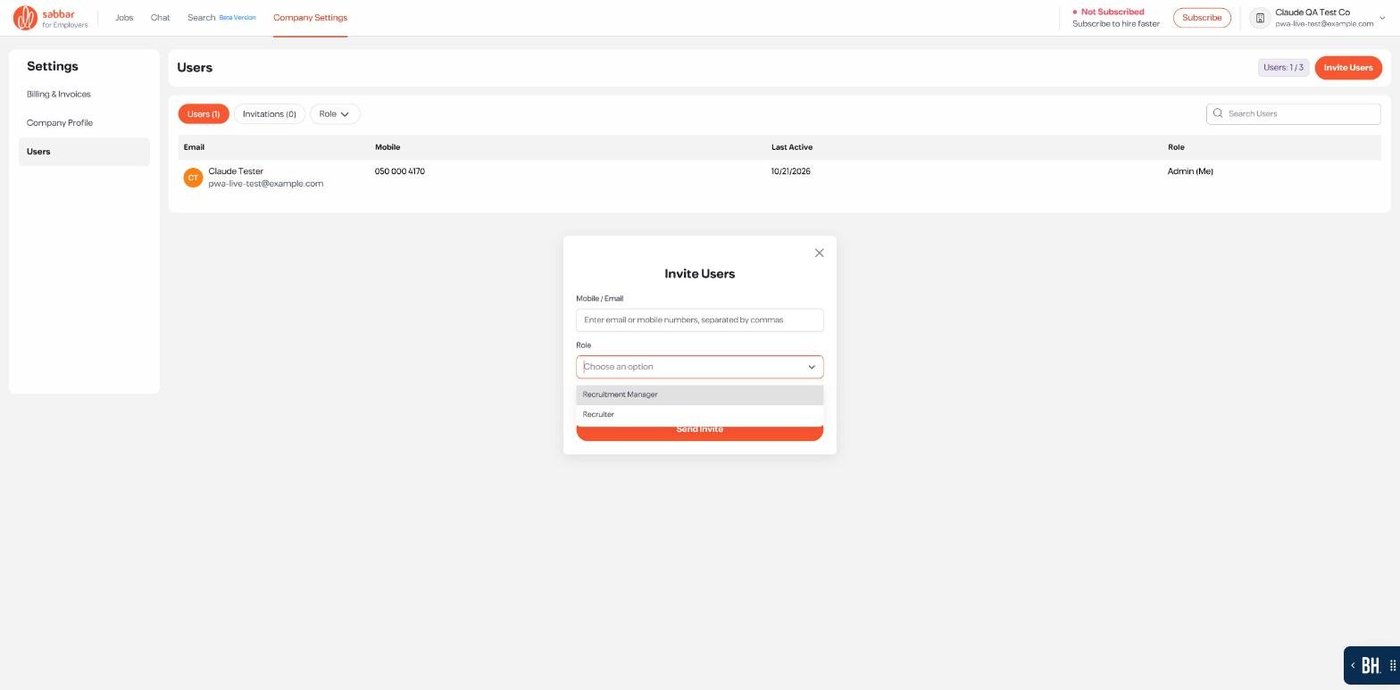
When you invite a colleague you choose one of two roles.
Recruitment Manager
For the person who leads hiring and controls its settings.
Recruiter
For the person doing the daily work: reviewing and contacting applicants.
The user who first registered the company is the company admin. Choose the role by what the person really needs, starting lower and raising it when necessary.
Your whole team on one account at no extra cost. Register your company on Sabbar and invite your colleagues from day one.

Sabbar is Saudi Arabia's leading local hiring platform
The go-to place for job seekers and employers across every sector in the Kingdom, with more than 1.5 million job seekers and thousands of companies
Get started with Sabbar today!
How do you invite a colleague to the company account?
- Open Users on the Sabbar employer platform.
- Choose to invite a new user.
- Enter their mobile number or email.
- Pick the role: Recruitment Manager or Recruiter.
- Send the invitation.
- Follow its status in the Invitations tab.
The section has two tabs: Users, for people who have joined, and Invitations, for those still pending.
Can one person work with more than one company?
Yes. One person can belong to several companies on Sabbar and switch between them. That helps:
- An owner of several brands.
- An HR manager for a group of companies.
- A hiring consultant working with more than one business.
How is the work split inside the team?
A practical split that suits most businesses:
- Owner or general manager: watches the overall picture and the plans.
- Recruitment Manager: creates jobs and sets stages and criteria.
- Recruiter: reviews applicants, chats with them and books interviews.
- Branch manager: reviews the shortlist for their branch and runs the final interview.
- Accountant: downloads invoices and adds VAT details.
What does the team see in common?
- The jobs list: with a filter by creator.
- Applicants and their stages: the same board for everyone.
- Notes on an applicant's profile: written by one colleague, read by another.
- The chat inbox: with All, My Chats and Unread tabs.
- Saud's results: the fit verdict, notes and transcript.
Nobody is called twice, and nobody is lost between colleagues. The board is explained in Recruitment process in Saudi Arabia.
How do you avoid clashes between colleagues?
- Name an owner for each job: one person responsible.
- Write a note after every contact.
- Use My Chats: so each person follows what they started.
- Move the applicant as soon as their status changes.
- Agree a reply time: such as 24 hours for every matched applicant.
- Review the board together weekly.
What about the app and notifications?
Each user signs in to the Sabbar Companies App with their own number and gets new applicant alerts on their own phone. The branch manager replies at once without waiting for anyone. See Sabbar employer app for Saudi businesses.
What do you do when someone leaves?
- Review the users list as soon as they go.
- Remove their access to the company account.
- Hand their open jobs and chats to a colleague.
- Check any pending invitations in their name.
Reviewing the users list every three months is a good habit; applicants' data is personal and only those who need it should reach it. See Candidate data privacy in Saudi Arabia.
Which account settings does each user control?
Each user has their own settings: name, verified mobile and email. Company activation details, such as the legal name and Commercial Registration number, sit at account level.
Common mistakes in managing a hiring team
- Giving everyone the highest role.
- Leaving a former employee on the users list.
- Sending an invitation to the wrong number and never checking it.
- A branch manager with no access asking for screenshots.
- Nobody owning replies to applicants.
Does adding users need a paid plan?
Users are unlimited on every plan. A plan sets the number of job posts and Applicant Contacts, not the size of your team. See Sabbar plans for Saudi employers.
A big team and many branches? See Sabbar's plans and the Enterprise tools for high-volume hiring.
An illustrative example: a café chain with three branches
This illustrates one way to organise a team; it is not a real case. A café chain in Dammam has three branches and hires baristas and cashiers all year round.
- The owner: registered the company first, so he is the company admin. He signs in once a week to look over the open jobs.
- The HR officer: was invited as a Recruitment Manager. She creates the posts and sets the stages.
- The three branch supervisors: were invited as Recruiters. Each reviews and chats with the applicants for their own branch's jobs.
Before that, a supervisor waited two days for a screenshot of the applicants list. Once organised, he opens the app and replies to the applicant the same day, and the HR officer sees his notes without having to ask.
A new colleague's first day on the account
Accepting the invitation is only the first step. Fifteen minutes of introduction prevent weeks of confusion.
- Check they signed in with their own number: not a colleague's.
- Ask them to complete their settings: name and email.
- Show them the open jobs: and which ones are theirs.
- Explain the stages: and when to move an applicant from one to the next.
- Show them how to write a note: and what goes in it.
- Ask them to install the app and turn on notifications: so they do not miss a new applicant.
- Tell them who to ask: one named person.
A short written agreement for the team
Tools alone do not prevent clashes. Write one page that everyone working on the account agrees to.
- Reply time: the maximum number of hours to reply to a matched applicant.
- Note format: for example "Called today, available for evening shifts, waiting for an interview slot".
- Who moves the applicant: whoever had the last contact moves them at once.
- Who rejects: and when the applicant is told the outcome.
- Who covers absences: a named colleague for each job during leave.
One page is enough. Review it whenever a new colleague joins or the way of working changes.
The weekly review in fifteen minutes
Reviewing the board together does not need a long meeting. Fifteen minutes with a fixed agenda are enough.
- Open jobs: how many, and for how long?
- Applicants with no reply: who has waited longer than the agreed time?
- This week's interviews: who runs them, and when?
- Stalled jobs: a post with no suitable applicants needs its description or salary reviewed.
- Filled jobs: close them so they stop receiving new applicants.
Leave the meeting with one clear task per person, not a long list nobody follows up.
How do you choose the right role for each colleague?
Ask these questions before you send the invitation.
- Will they lead hiring and control its settings? Then Recruitment Manager.
- Is their daily work reviewing and contacting applicants? Then Recruiter.
- Is their involvement temporary? Such as a supervisor helping for one season. Start with Recruiter and remove their access when the season ends.
- Has their role in the business changed? Review their role on the account the same day.
If you run hiring alone today, you need none of this yet. It is enough to know that adding your first colleague costs nothing extra when your business grows.
Bring your whole hiring team onto one account
Unlimited users, a role for every colleague, and one board everybody sees. Register your company, invite your team, and post your first job for free.
Summary
A hiring team on Sabbar works on one account with a separate sign-in for each colleague, as Recruitment Manager or Recruiter, with unlimited users on every plan. Everyone sees the same jobs, applicants and notes, so work is shared without clashes or shared logins.
FAQs about users and roles on Sabbar
How many users can I add to the company account?
Unlimited, on every plan.
Which roles are available?
Recruitment Manager and Recruiter.
How do I invite a colleague?
From Users, with their mobile number or email, choosing the role.
Does my colleague need a password?
No. Sign-in is by mobile number and an SMS code.
Can a user belong to more than one company?
Yes, and they switch between companies from their account.