Signing up for the Sabbar app takes no complicated email and no password to forget. All you need is your mobile number and a code sent by text message, and a minute later you have an account for finding jobs in your city.
This guide walks through the sign-up steps in order, the questions the app asks and why, and how to fix the most common sign-up problems.
What you will learn
- What you need before signing up for Sabbar.
- The steps from downloading the app to your first job.
- How your answers shape the jobs you see.
- Quick fixes for verification code and number change issues.
What is signing up for the Sabbar app?
Signing up for the Sabbar app means creating a job seeker account with your mobile number and a verification code. The same step logs you in later, so there is no difference between "create account" and "log in".
The account is completely free and gives you one CV to use for every application. For the full picture of the app, read the Sabbar job app guide.
What do you need before signing up?
You need only three things before you start.
- A phone running iOS or Android: the app is on both stores.
- A mobile number that receives text messages: employers may contact you on it, so choose a number you really use.
- Two minutes: the questions are short and mostly multiple choice.
Steps to sign up for Sabbar with your mobile number
Signing up takes six short steps.
1. Download the app and choose the language
After downloading, the app asks for your preferred language: Arabic or English. Short intro slides follow on finding a job, creating a CV and hearing back from companies.
2. Enter your mobile number
Type your number in the "Mobile Number" field. The app notes that recruiters may contact you on this number.
3. Enter the verification code
A code arrives by text message. Enter it and your number is verified. There is no password to remember.
4. Answer: what are you looking for?
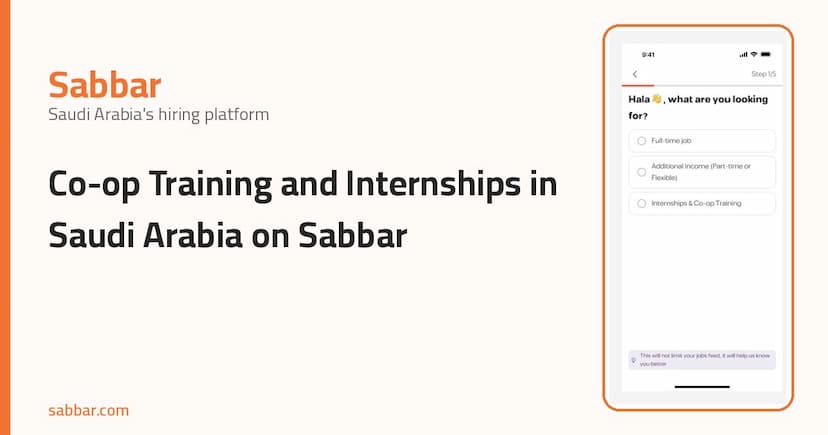
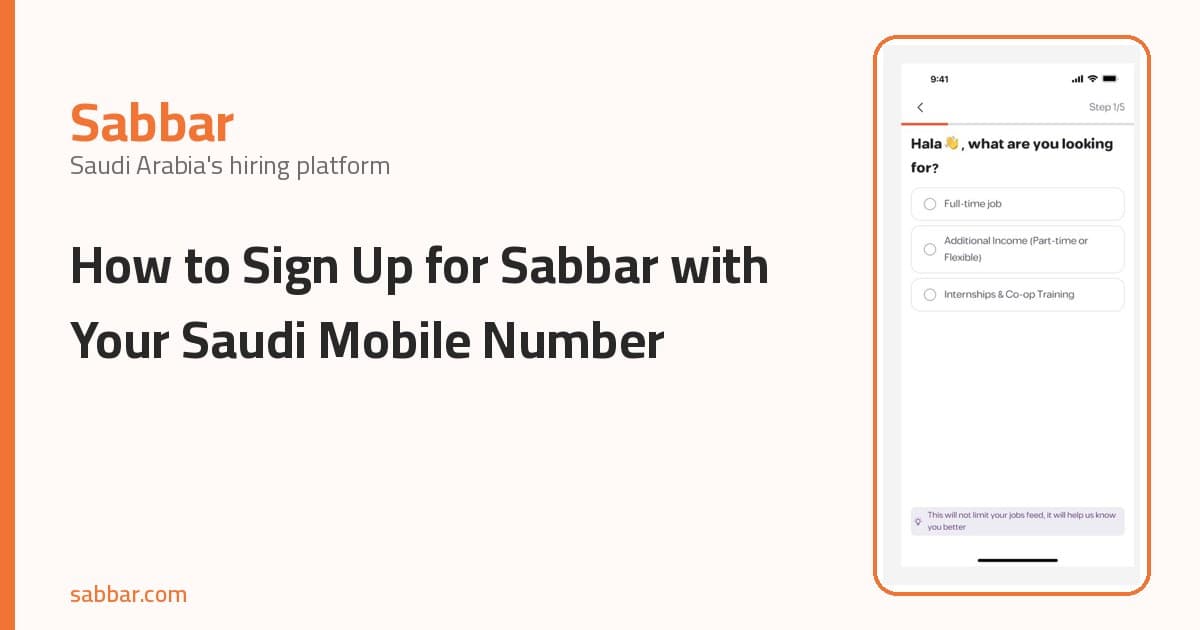
The app asks "Hala, what are you looking for?" and you choose one of three: a full-time job, additional income (part-time or flexible), or internships and co-op training.
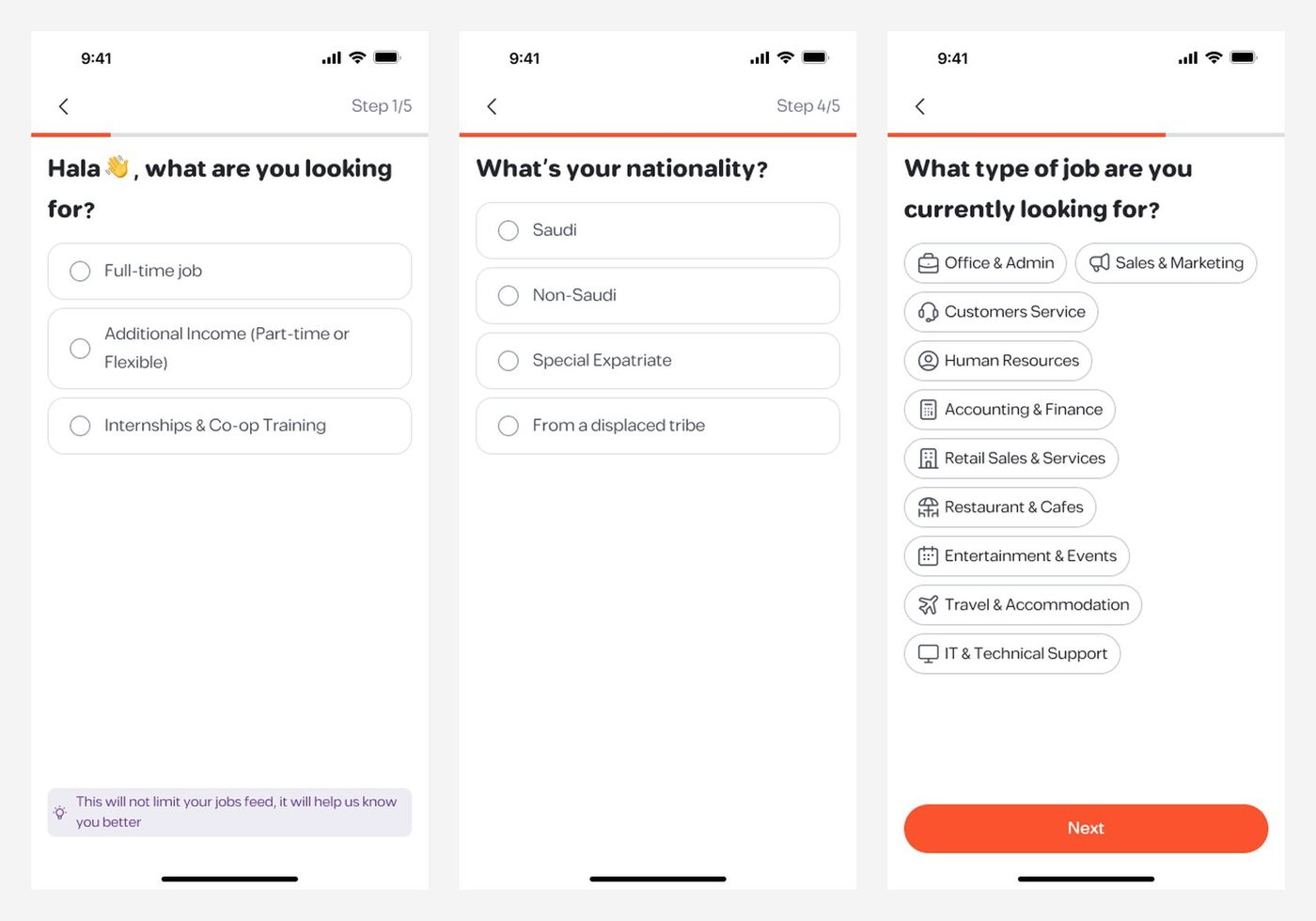
5. Complete your basic details
Enter your name, gender, nationality and email, then tap "Register".
6. Set up your job feed
This is the step that matters most. You choose the job categories you care about and your experience in them, then job titles, then your preferred work location. The app explains that location does not limit jobs; it shows nearby ones first. You can also upload a CV file if you have one.
The steps are all in front of you. Download the Sabbar app, open your account in a minute, and let it show you jobs near your district.

Sabbar is Saudi Arabia's leading local hiring platform
The go-to place for job seekers and employers across every sector in the Kingdom, with more than 1.5 million job seekers and thousands of companies
Get started with Sabbar today!
How do your answers shape the jobs you see?
Your sign-up answers build the "For You" feed, the page that shows jobs picked for you.
- Work type: choose additional income and part-time and flexible jobs come first.
- Categories and titles: they set the kind of jobs, such as sales, customer service or restaurants.
- Location: it puts jobs near your home at the top.
- Experience: it helps the app suggest roles at your level.
You can change these preferences later in the CV tab, under "Work Preferences".
What should you do right after signing up?
Right after signing up, finish three tasks that raise your chances.
- Turn on notifications: so you never miss a new job or a reply from a company.
- Complete your CV: add experience, education and skills.
- Add a photo and an introductory video: both optional, and both raise how visible your CV is to employers.
If you are not sure the platform is right for you, read Is Sabbar legit? first.
Account ready? Browse open jobs now and apply to the first one that fits in a few taps.
Common sign-up problems and fixes
Most sign-up problems are about the verification code or a changed number, and the fixes are simple.
- The code did not arrive: check the number and your signal, then tap resend.
- I changed my mobile number: change it inside the app with a code sent to the new number.
- I want to verify my email: a link arrives by email; tap it to see "Email Verified".
- I want to change the language: in Settings, choose English or العربية.
- Something else: use "Contact us" in Settings, where you can attach a screenshot.
An illustrative example: three job seekers, three different setups
The right setup depends on your situation. Here are three illustrative job seekers in Saudi Arabia and how each one sets up the account.
- A university student in Jeddah who wants extra income: picks "Extra income, part-time or flexible", the restaurant, café and retail categories, and districts close to home or campus so hours are not lost to commuting.
- A sales associate with three years of experience in Riyadh: picks "A full-time job", the sales and retail category with her real experience, and adds nearby titles such as Sales Supervisor so promotion opportunities show up.
- A graduate looking for co-op training in Dammam: picks "Internship and co-op training", adds his major under education, and turns on notifications because training openings close quickly.
In all three cases, an extra minute in setup makes the For You feed show closer matches from day one.
How to choose the right categories and job titles
Choosing categories and titles is the step that shapes your feed the most. Follow these rules.
- Start with what you have actually done: the category where you have experience raises your match with employers.
- Add two or three related titles: such as Cashier, Sales Associate and Customer Service, which share similar skills.
- Do not select everything: many unrelated categories fill your feed with jobs that do not suit you.
- Be honest about your experience level: overstating brings jobs you will not be accepted for, and understating hides jobs you deserve.
- Review your choices from time to time: if your goal changes, edit Work Preferences from the CV tab.
Your first week on Sabbar: a simple plan
Signing up is only the start. This first-week plan puts your account to work.
- Day one: complete your CV with experience, education and skills, and add a clear profile photo.
- Day two: record a short intro video, check the For You feed, and apply to the three jobs that fit best.
- Days three and four: use search and filters, and save the jobs you want to return to.
- Day five: check your applications in the Applications tab, and reply to any message or interview invitation.
- End of the week: adjust your preferences if the jobs shown do not suit you, and prepare for interviews.
Common mistakes after signing up
These mistakes leave you with an account that exists but brings no result.
- An incomplete CV: employers skip a profile that shows no experience or skills.
- A number you do not use: if an employer contacts you on a neglected number, you miss the opportunity.
- Notifications turned off: an interview invitation expires, and the notification is what alerts you to it.
- Applying to everything: random applications waste your time. Apply where your experience and location match.
- Sharing your verification code: the code sent by SMS is yours alone. Neither Sabbar nor any employer will ask for it.
Sign up for Sabbar now and start applying to jobs in your city
Your mobile number is enough to open a free Sabbar account in a minute. Choose your categories and city, build one CV for every application, and join more than 1.5 million job seekers in Saudi Arabia.
Summary
You sign up for the Sabbar app with a mobile number and a verification code, with no password and no fee. Answer the sign-up questions carefully, because they decide which jobs you see, then complete your CV and turn on notifications.
FAQs about signing up for Sabbar
Is signing up for Sabbar free?
Yes. Signing up is completely free, as are the CV and job applications.
Do I need a password?
No. Sabbar does not use passwords. You log in with your mobile number and a code sent by text each time.
Can non-Saudis sign up?
Yes. The app is for job seekers living in Saudi Arabia, Saudi and non-Saudi, and you set your nationality during sign-up.
Can I sign up on the website without the app?
The job seeker account is created in the app. You can still apply to any job on Sabbar's website with a short form and a CV upload, without downloading the app.
How do I delete my account?
In Settings, choose delete account, give a reason, and confirm with a code.